Editor's note: This post was reviewed and updated in October 2026 by Luka Cempre, Head of Data Modernization and Cloud Strategy, to reflect current export options, limits, and costs.
The Google Analytics 4 (GA4) BigQuery export is one of the most valuable tools available to analytics practitioners, and it's available to all Google Analytics users at no additional cost. If you're looking to move beyond the limitations of the Google Analytics UI and work directly with your raw event data, the BigQuery export is where that work starts.
In this overview, we'll walk through how to set up the export, what the data structure looks like, and how to write your first queries against it.
How to turn on the GA4 BigQuery export
The BigQuery export can be turned on from within the Google Analytics UI. Go to the admin section and select "BigQuery Linking."
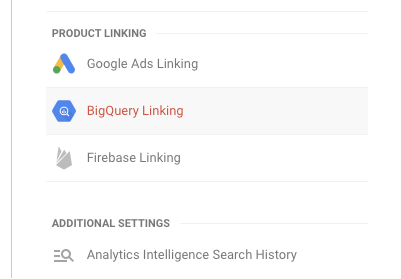
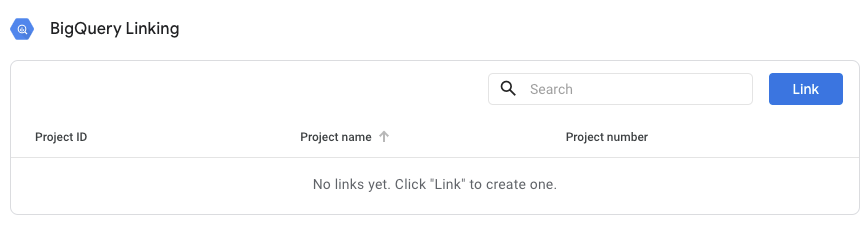
Once selected, the existing connection (if any) will be displayed. Set up a new export by clicking on the blue "Link" button.
On the linking screen, select a Google Cloud project that you manage. If your organization does not have a Google Cloud project yet, you may have to create a new one.
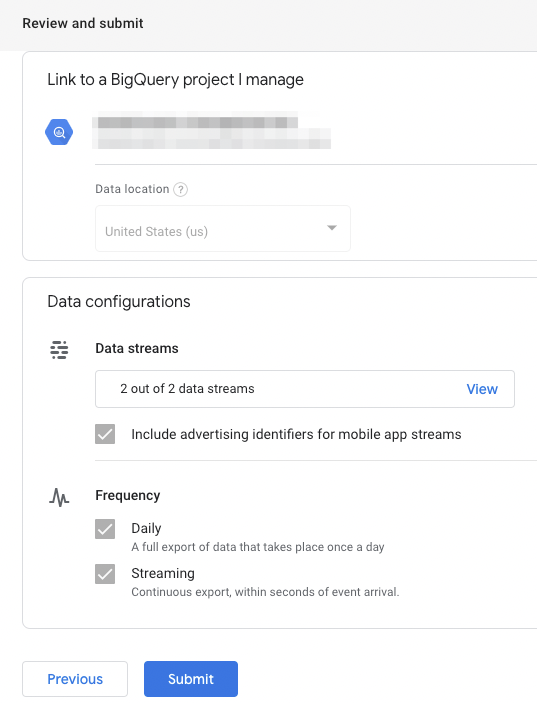
When configuring a link, you will be able to select the Google Analytics data streams that you would like to see flow into BigQuery as well as two options for frequency. The daily frequency option will provide you with a full daily export of data from the previous day. When I first tested the export, tables usually landed between 5 and 6 AM, but Google doesn't guarantee a time, so build downstream jobs around table availability rather than the clock. The streaming option will allow you to query Google Analytics hits from your website in BigQuery within a few minutes.
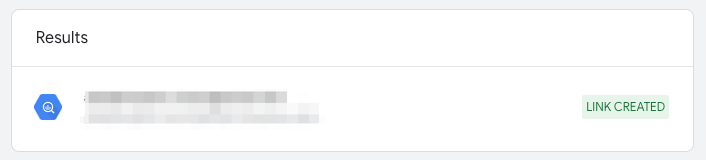
Once a link is successfully established, you will see a green "LINK CREATED" badge on the BigQuery linking page.
Only one link per Google Analytics property is allowed.
What are the GA4 BigQuery export limits and costs?
The export itself is available at no additional cost, and you can send data to the BigQuery sandbox for free within its limits. Beyond the sandbox, you'll pay standard BigQuery storage and query costs, and streaming adds $0.05 per GB of data streamed. Google estimates that 1 GB equals roughly 600,000 events, though that varies with event size.
Standard properties can send up to 1 million events per day through the daily export, while streaming has no volume limit. If a property consistently goes over that cap, Google pauses the daily export. Analytics 360 properties get a much higher daily limit and can add a Fresh Daily option for faster, more complete tables.
One tradeoff to plan for is that streaming leaves out traffic source data for new users, so attribution work should run on the daily tables, which hold four different types of traffic source data.
GA4 BigQuery export dataset and table names
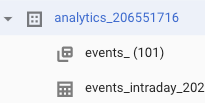
Data will be exported to the project that was set at link creation in Google Analytics. The dataset is named analytics_PROPERTY ID. The daily table is formatted as events_YYYYMMDD and the current day's table as events_intraday_YYYYMMDD.
How is the GA4 BigQuery export schema structured?
Each row in the export is a single event, rather than a session as in the old Universal Analytics export, and many metrics and dimensions have to be extracted from other event attributes. For a field-by-field mapping, see our Universal Analytics to GA4 BigQuery export guide.
Three starter queries for the GA4 BigQuery export
1. Number of users
Client ID value can be found in the user_pseudo_id attribute. To calculate the number of unique users on a given day, we need to look for the unique number of those IDs.
SELECT
  count(distinct user_pseudo_id)
FROM `projectId.analytics_propertyId.events_20210125`
2. Number of new users
Since the export doesn't include a ready-made "new user" attribute, a query looking for the number of new users on a given day requires unnesting of event values. This will be a frequent practice in the GA4 export, and our deep dive on event parameters and other repeated fields walks through the pattern in detail. Make sure to bookmark or remember the WHERE part of the query below.
SELECT
  count(distinct user_pseudo_id)
FROM `projectId.analytics_propertyId.events_20210126`
WHERE
  (SELECT value.int_value FROM unnest(event_params) WHERE key = "ga_session_number") = 1
3. Most viewed pages by title
With every hit being an event, there's no hit type parameter, so to limit our query to only page views we have to filter it by event name ("page_view" by default).
SELECT
  count(distinct user_pseudo_id)
FROM `projectId.analytics_propertyId.events_20210126`
WHERE
  (SELECT value.int_value FROM unnest(event_params) WHERE key = "ga_session_number") = 1
Why enable the GA4 BigQuery export from day one
Making the BigQuery export free for all GA4 properties democratized what was once an enterprise-only option. Working from raw event data moves you past the sampling, thresholding, and rigid reporting limitations of the standard UI, giving you full ownership of your data.
Next steps with the GA4 BigQuery export
Once your data is flowing, our guide to calculating users and sessions in the GA4 BigQuery export picks up where these starter queries leave off. You can also watch me walk through the export, from simple counts to joins with your own data, in our on-demand GA4 and BigQuery export webinar. If you'd like help putting your raw event data to work, we'd love to talk.